GRAV Documentation - EN
Logging in to the administator panel
Administration dashboard
If you nagivate to your website (e.g. https://www.yourwebsiteurl.com) and append '/admin' to the end of your url, you reach the admin login panel. This is the panel which you use to login to the backend of your webpage (see figure 1).
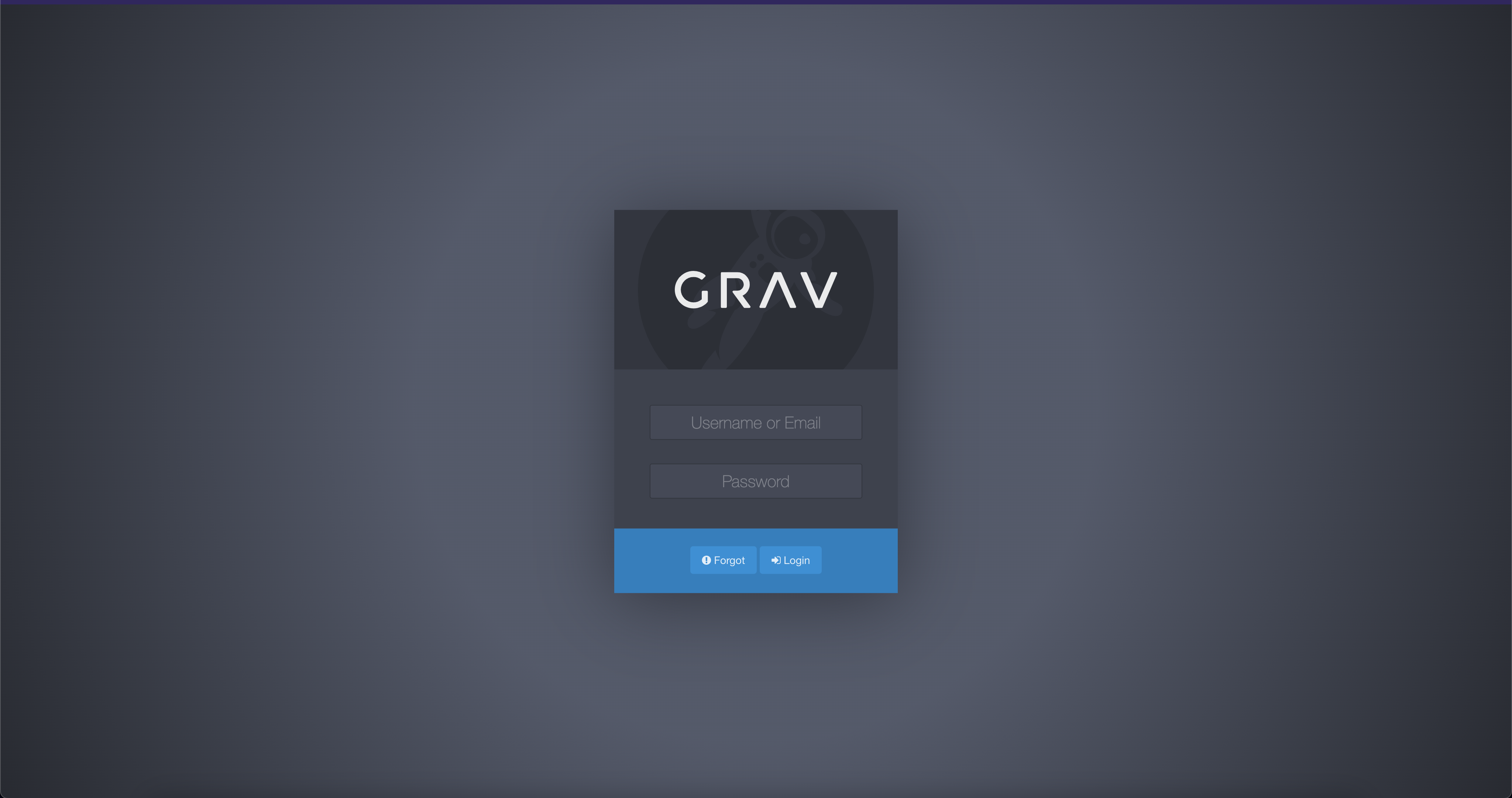 Figure 1
You can log into this administration panel, with the credentials you have been sent by mail or some other way. When you log in to the dashboard, you will see the following page (see figure 2)
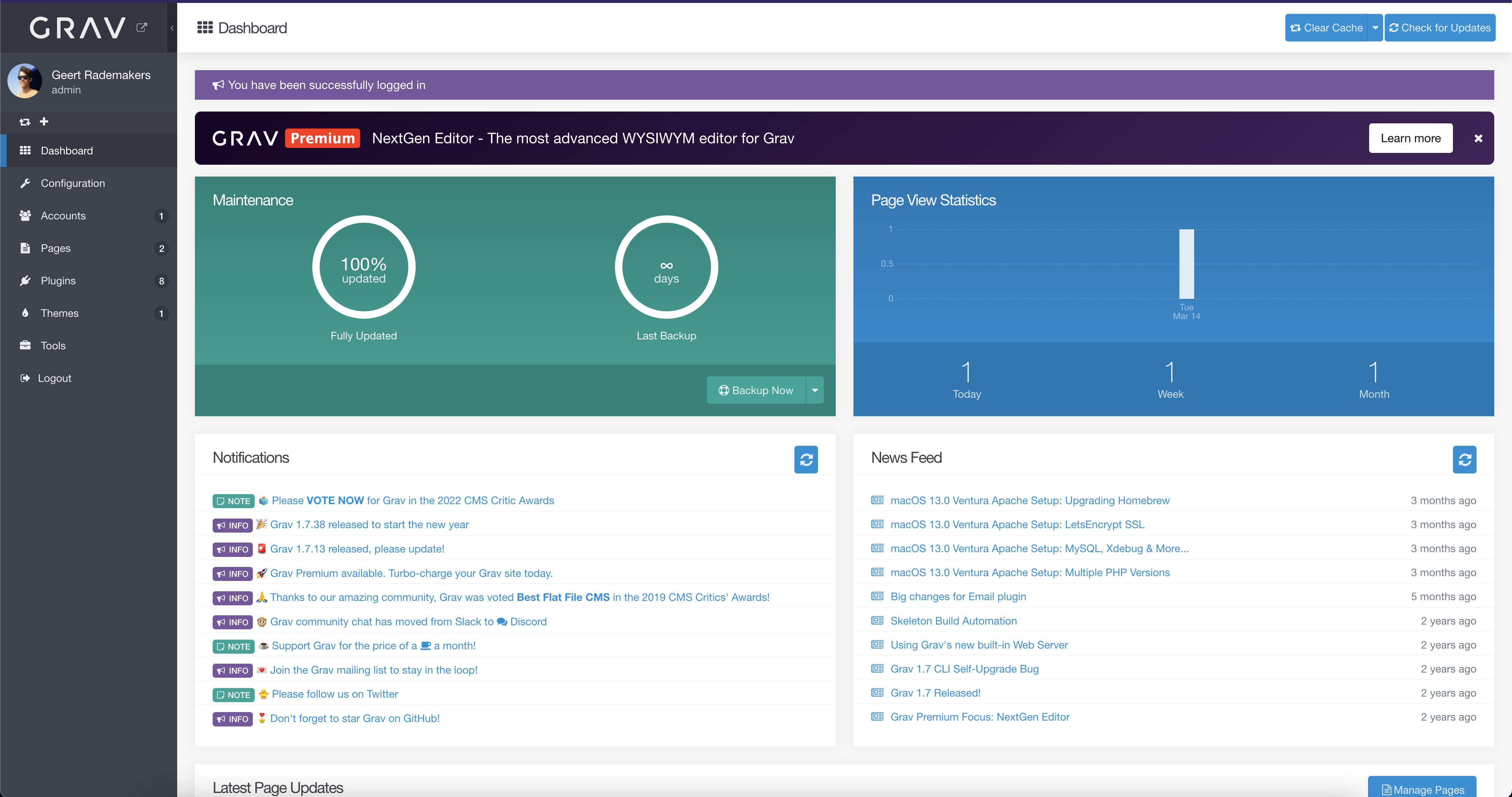 Figure 2
Most if this, you won't have to do anything with. You can see some statistics about your website here, but it might not be accurete. The best statistics are collected through Google Analytics, if that was part of your package. Most interesting is the sidebar. It might be less filled for your account, depending on your role or the role your organization has given you. If you want to read more on any of these topics that are relevant, click on the links below.
Page management
Everyting you need to know about creating and managing pages and page groups.
Create a new basic page
Most of the pages you will create, are pages of the modulair type. Besides modulair pages, which require more effort to create but are also more versatile, you can also create more basic and 'set in stone' pages, like the contact page. To create a new page like these, login using the admin panel and navigate to the pages tab, using the navigation panel on the left side. You will land on the page shown below (figure 1).
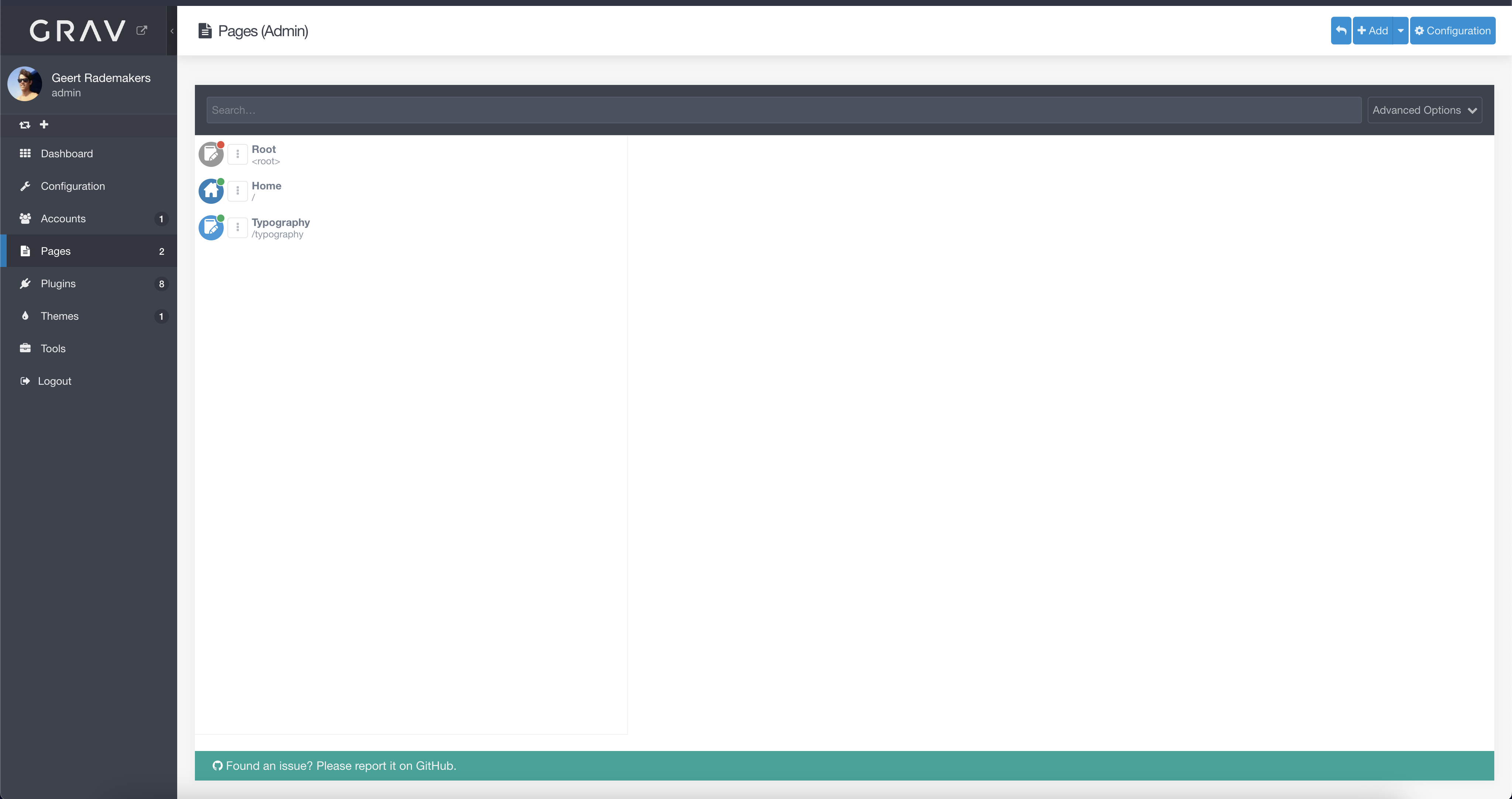 figure 1
At the right top, click on the '+ Add' button in blue. You can directly click on the button, or expand the menu and select 'Add page'. You will now be prompted with a dialog asking you for the description and configuration of your new page (figure 2). On some pages, the page title is used as a header on said page. Pick a good title for your new page, but don't worry, this value can be changed later. The folder name will be automatically filled. The title can contain capital letters and special icons while the folder string stays properly formatted. You don't have to change the folder name. Default, the parent page is set to the root of the webpage. This means that the page will appear in the top level of the menu and get an url based on the folder name. If the folder name, for example, 'contact'; the url of this page will be www.yourwebsite.com/contact.
After setting all this, you can define a template. The template you will use most, will be 'modular'. Modular means that you can add modules to this page (TODO: which you can read in this chapter). In the case of modular, the page you create here, will merely be a frame and not display anything unless you add modules to it. An example of a modular page, is probably your home page. You can pick any template you want according the page you want to create. The pages should be logically labeled, and you will find a list of modules that your website support in TODO: this chapter. Set the page visibility to your liking. Auto usually means that the page is immedietly visible. If you want to edit your page (a blog for example) before publishing it in your website, set the visibility to 'No'.
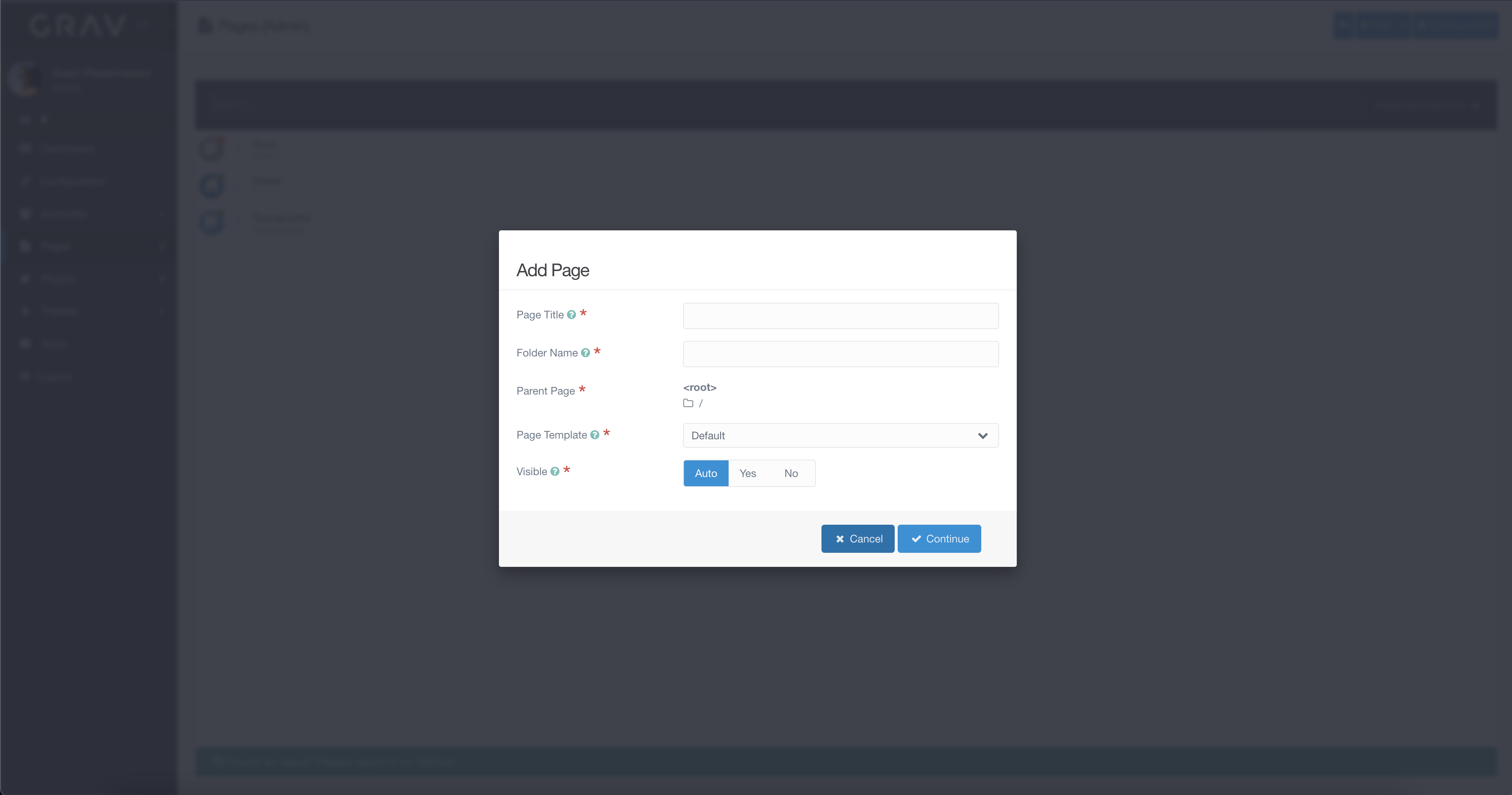 figure 2
After clicking 'continue' on the popup modal in figure 2, you'll land on the new and to be edited page displayed in figure 3. As displayed in the above, This page will not exist until it is saved. This is important, because most of the editors, aswell as the media, are only available after the page has been saved. It is recommended to save the page now, before continuing. You can save the page, by pressing the 'Save' button, in the upper right position on the screen.
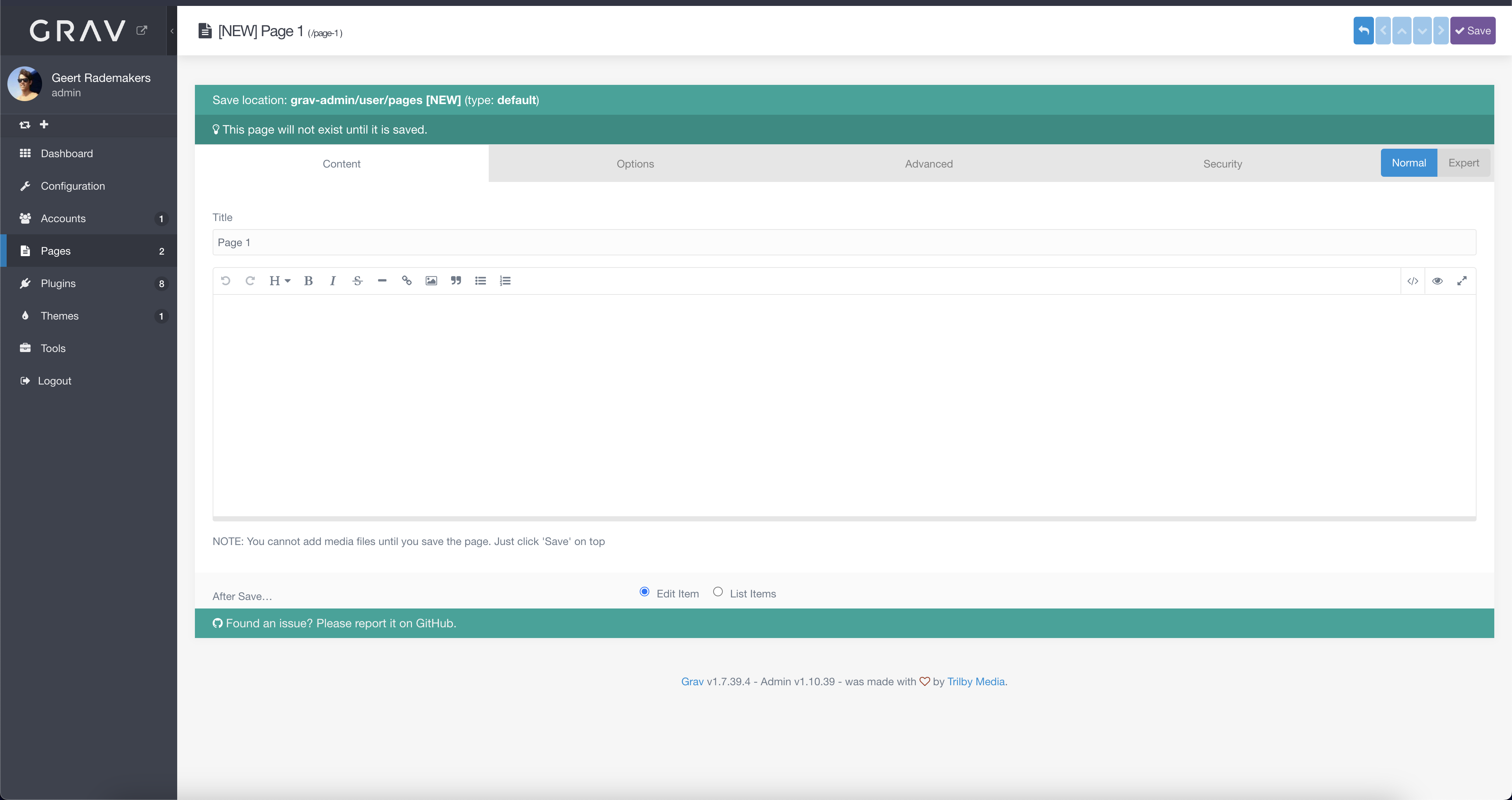 figure 3
After saving the page, you will see the correct editor and the media part. You can now add content to the page and check how the page looks like by either visiting the url (if the page is visible), or by pressing the 'eye' icon next to the 'delete' button (figure 4). This will preview the page, so you can see the page, before publishing it.
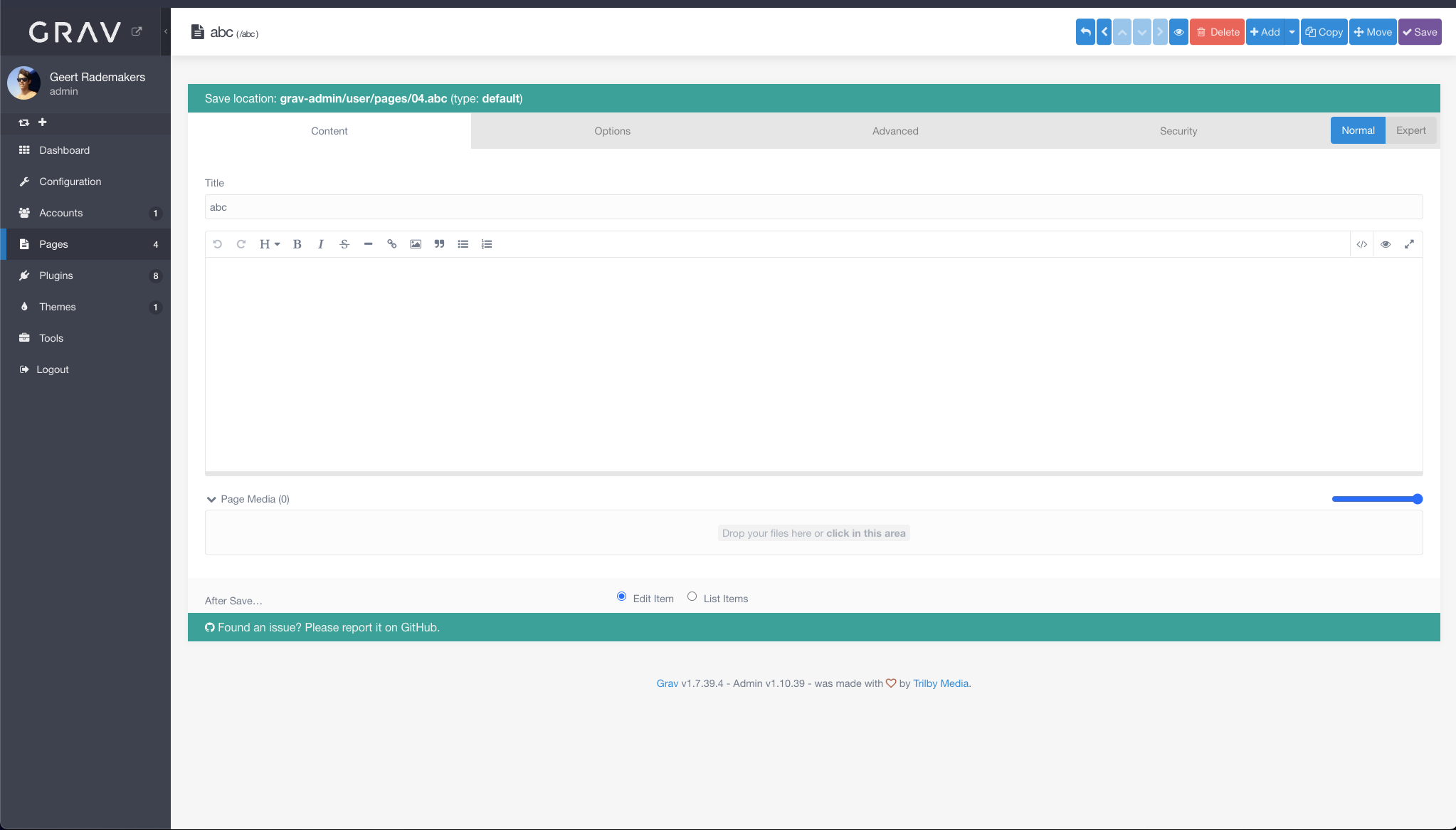 figure 4
After saving you will be able to see your page in the 'Pages' tab in the side menu. And, if published, under the url that you have given as folder name.
Manage an existing page
To manage an existing page, go to the 'Pages' tab in the left-hand menu. After that, select the page you want to edit, from the selection shown below (figure 1). If the page you want to edit is in a folder or submenu, be sure to open that folder first and then select the desired page.
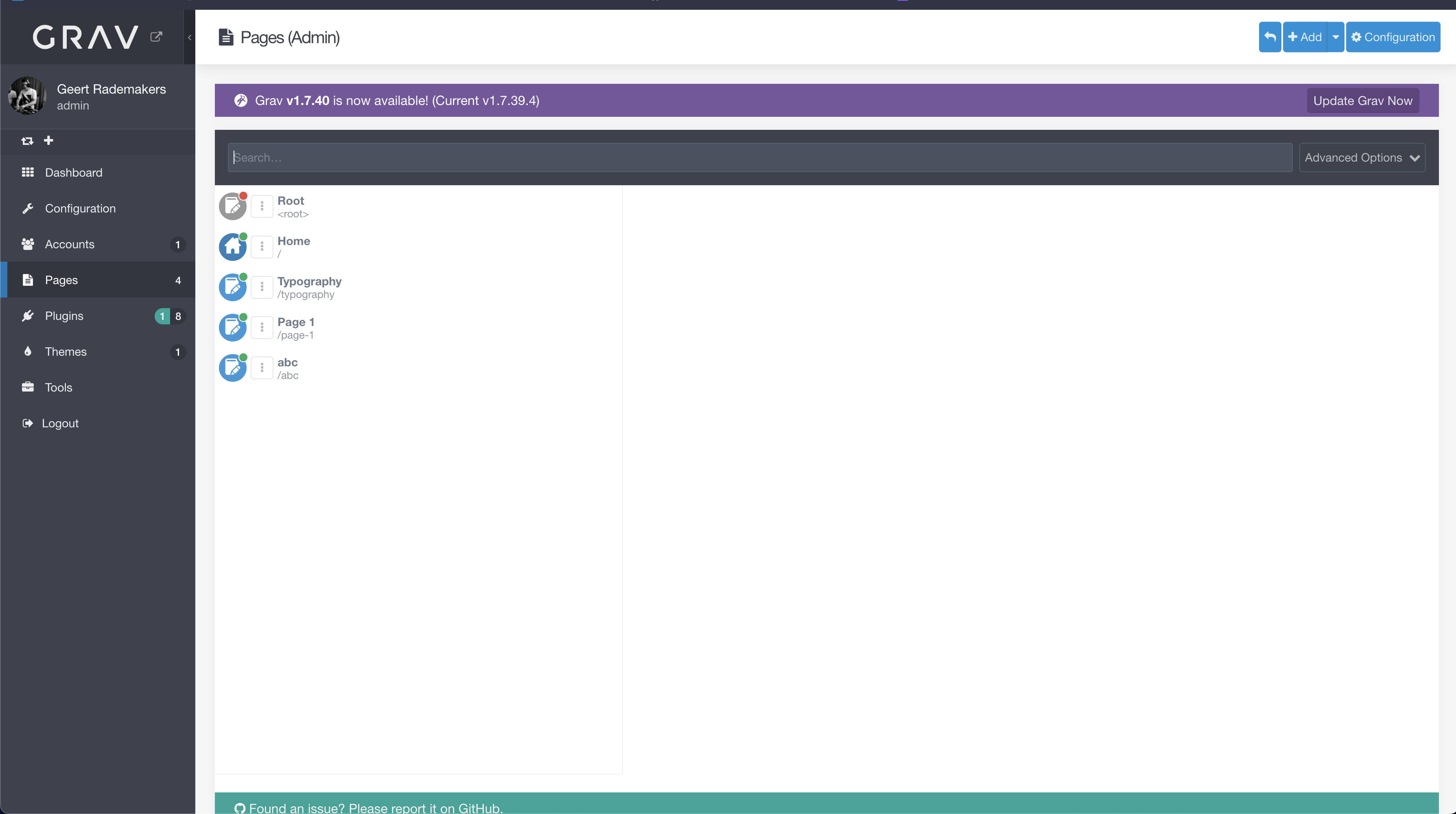 figure 1
After selecting the page, you are able to edit the content you want. You can:
- Add extra media
- Change the order of media
- Change text on the webpage
- Change the title of the webpage
- And much more!
After a change, be sure to click 'Save' (figure 2) on the top right corner to make sure the changes have been saved. The changes you made, are immedietly reflected on the webpage. You can preview the page by either clicking the 'eye' icon next to the 'Delete' button, or navigate to the page itsself it is already visible. Be sure to save your page before you do this!
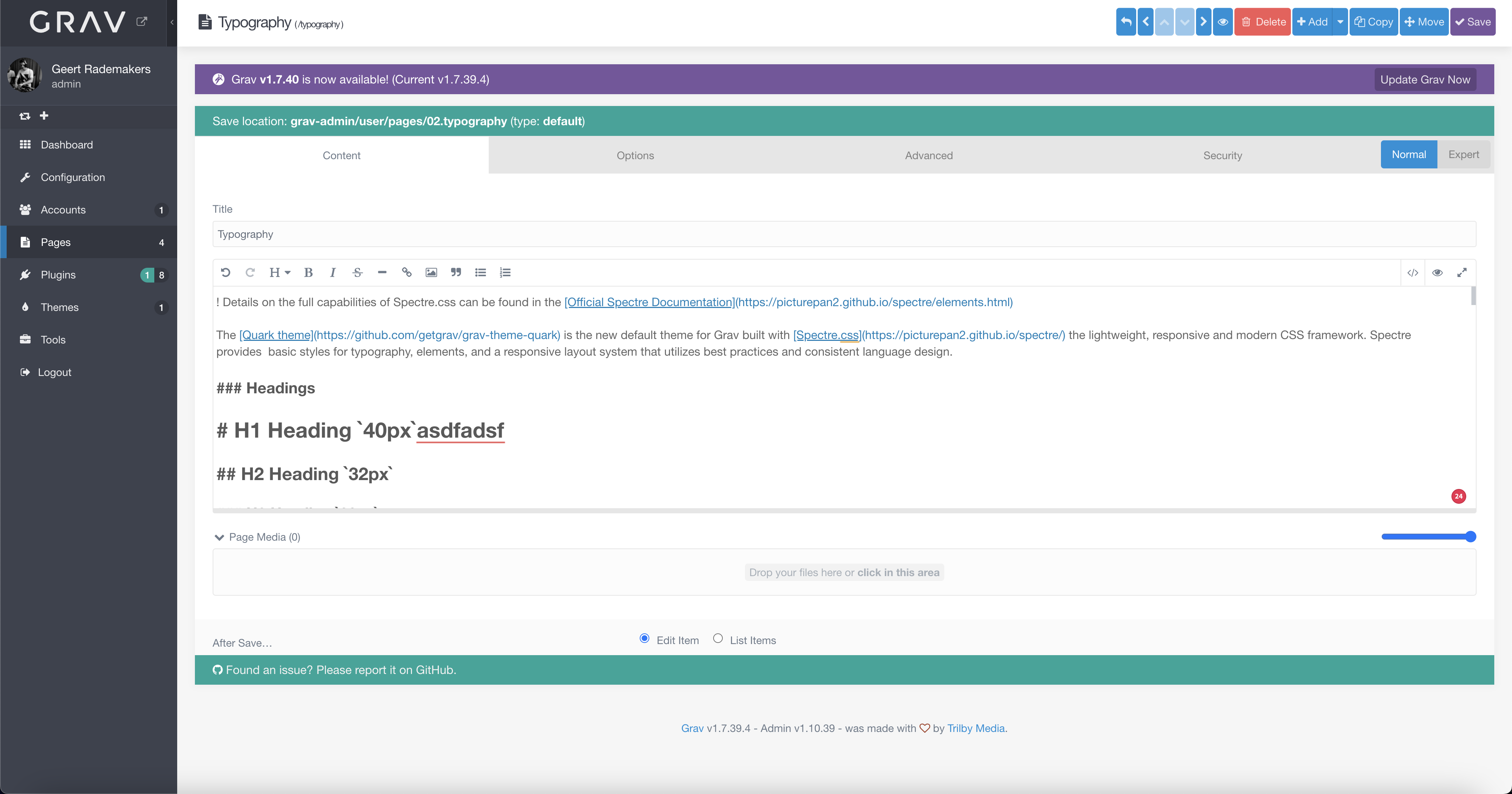 figure 2
To change the order of the page, click on the 'advanced' tab (figure 2). Here you will find the following page (figure 3). You can change the order by enabling 'Folder Numeric Prefix' and saving the page. This will add a number to the folder, after which you can change it in order. Be sure the other pages in this folder also have 'Folder Numeric Prefix' enabled, else you won't be able to change the order.
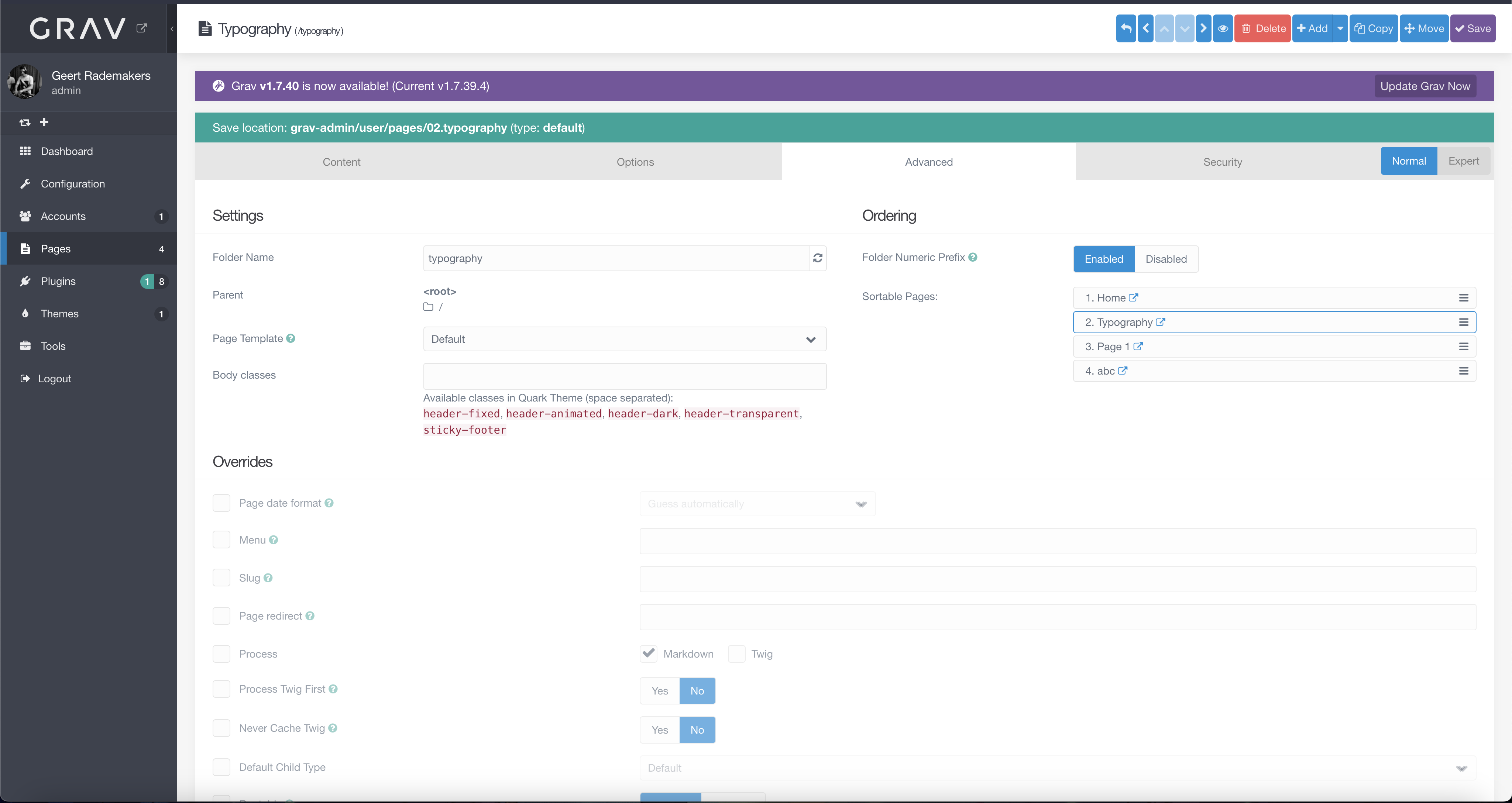 figure 2
Create a new modular page
Creating a modular page is almost the same as creating a default page, but creating the content differs quite a lot. Most of the time, the more complex pages are modular pages. Refer to the documentation of your specific website, to check which page should be made as a modular page, and which pages can be created as a default page.
The modular page is, as the title suggest, built from modules. As shown in figure 1. You will need to create the base page, which will appear in the menu, and inside the base page, create modules, which will be displayed in order created unless you change this, which is recommended.
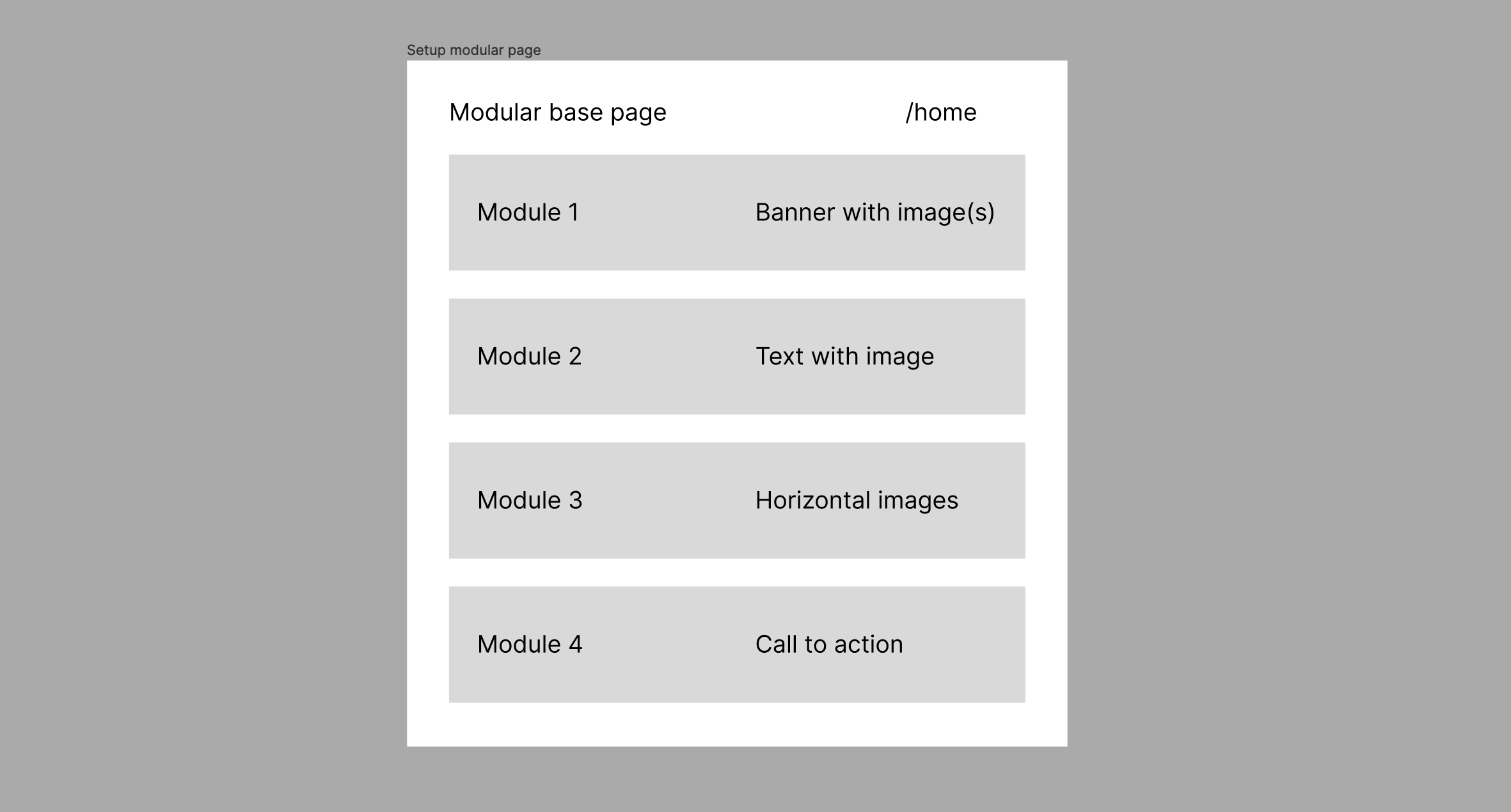 Figure 1
Start by creating the base page by navigating to the 'Pages' item in the menu sidebar, and you will reach the overview page. Create a default page following this chapter (create a new basic page) and make sure to set the 'page template' to modular.
After you created your new modular page, navigate to the 'Pages' item in the menu sidebar again. Here, instead of clicking the '+ Add' button, click the small arrow pointing down next to it, and the following menu will open (figure 2). Click on the 'Add Module' button which will bring you the following form (figure 3). Continue reading below.
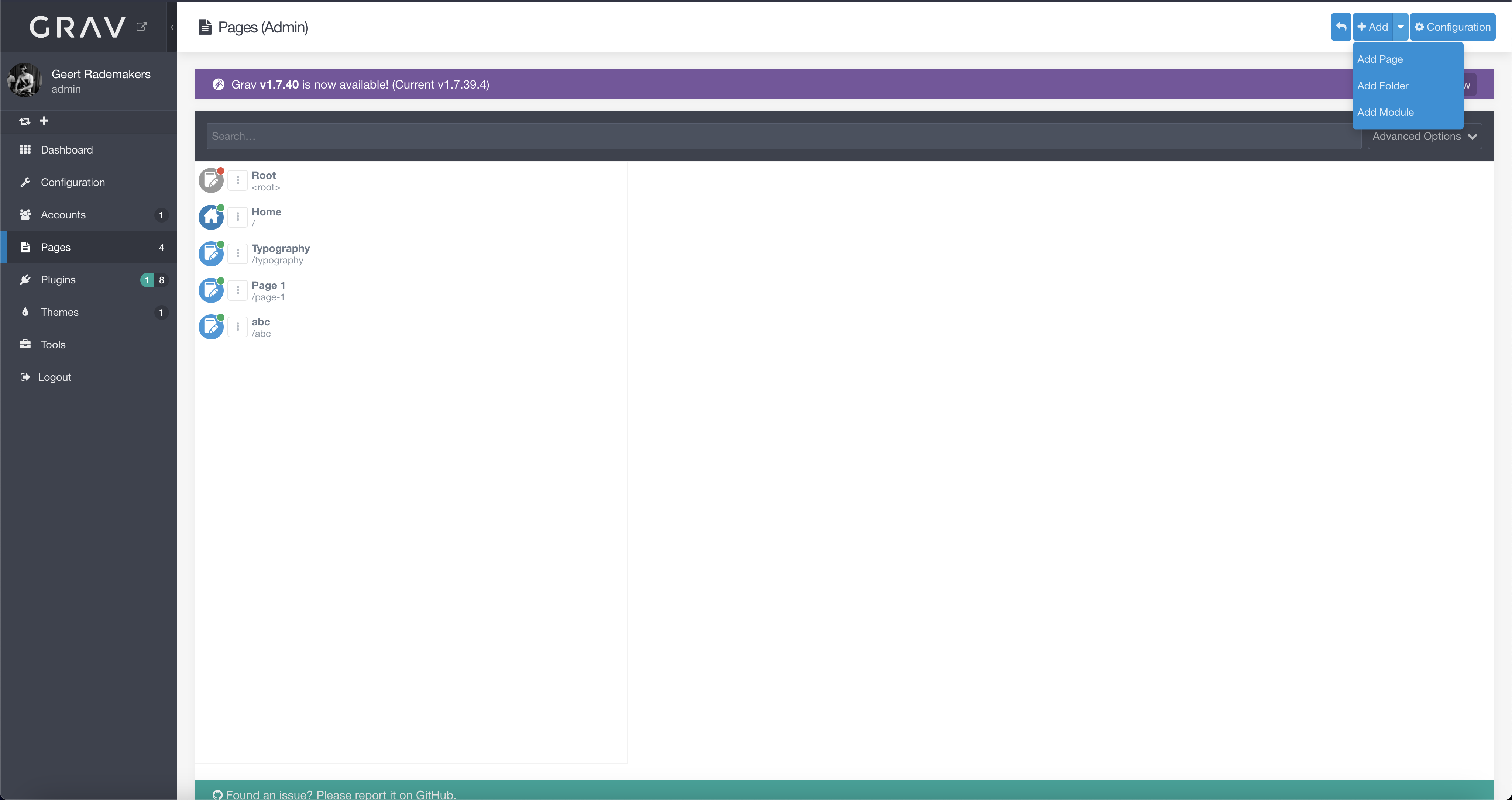 Figure 2
You will now be prompted with a dialog asking you for the description and configuration of your new page (figure 3). On some pages, the page title is used as a header on said module. Pick a good title for your new module, but don't worry, this value can be changed later. The folder name will be automatically filled. The title can contain capital letters and special icons while the folder string stays properly formatted. An important thing fill in correctly here, is the 'Page' field. The 'Page' field refers to the parent page, where the module will be placed under. Be sure to select the correct parent page. The latest field you'll have to fill in, is the 'Module Template' field. This field will determine what kind of module you will select to be displayed on your page. Refer to the module list that has been created for your website to select the module you need to select.
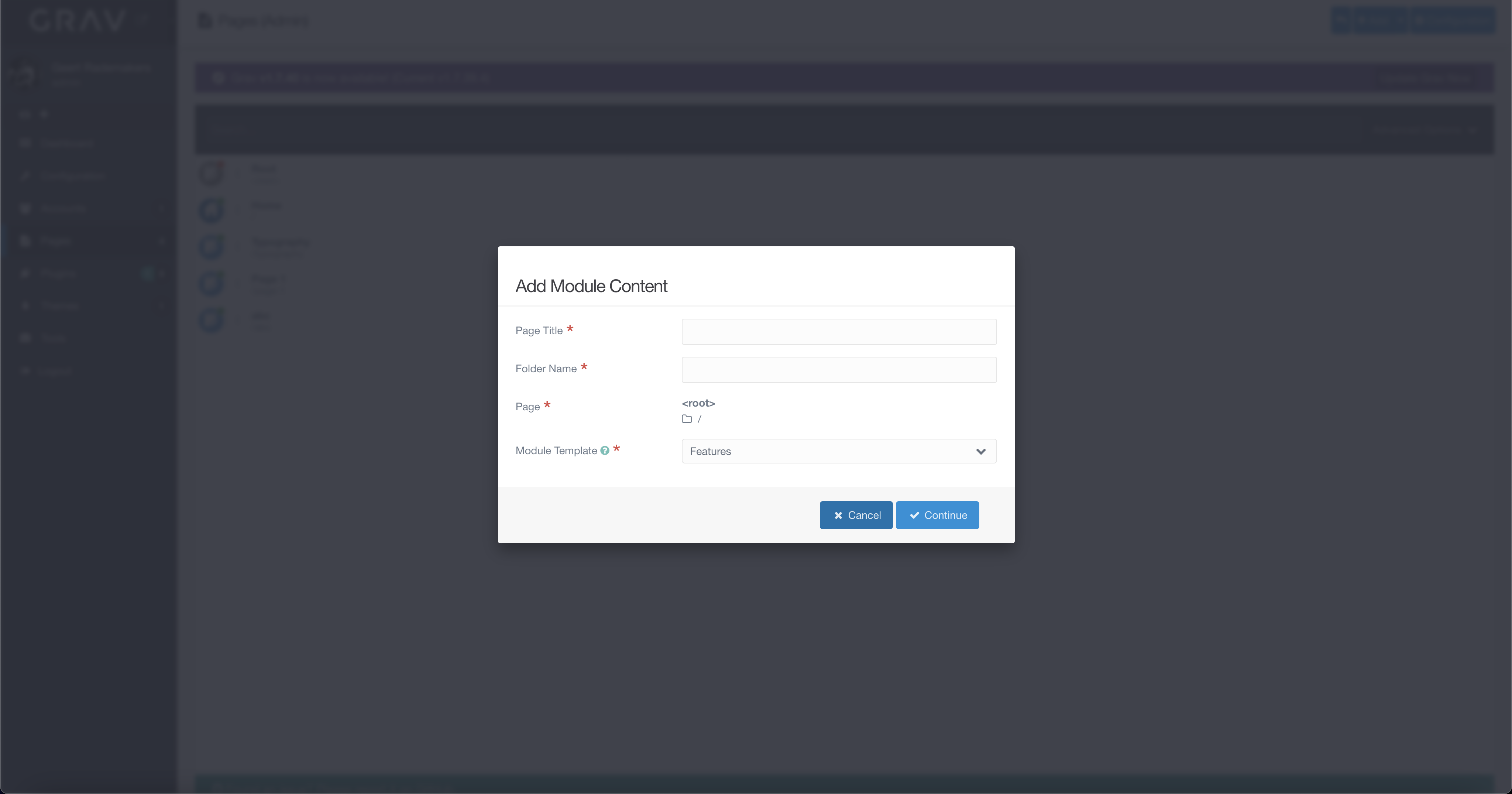 Figure 3
After clicking 'continue' on the popup modal in figure 3, you'll land on the new and to be edited module displayed in figure 4. As displayed in the above, This module will not exist until it is saved. This is important, because most of the editors, as well as the media, are only available after the module has been saved. It is recommended to save the module now, before continuing. You can save the module, by pressing the 'Save' button, in the upper right position on the screen.
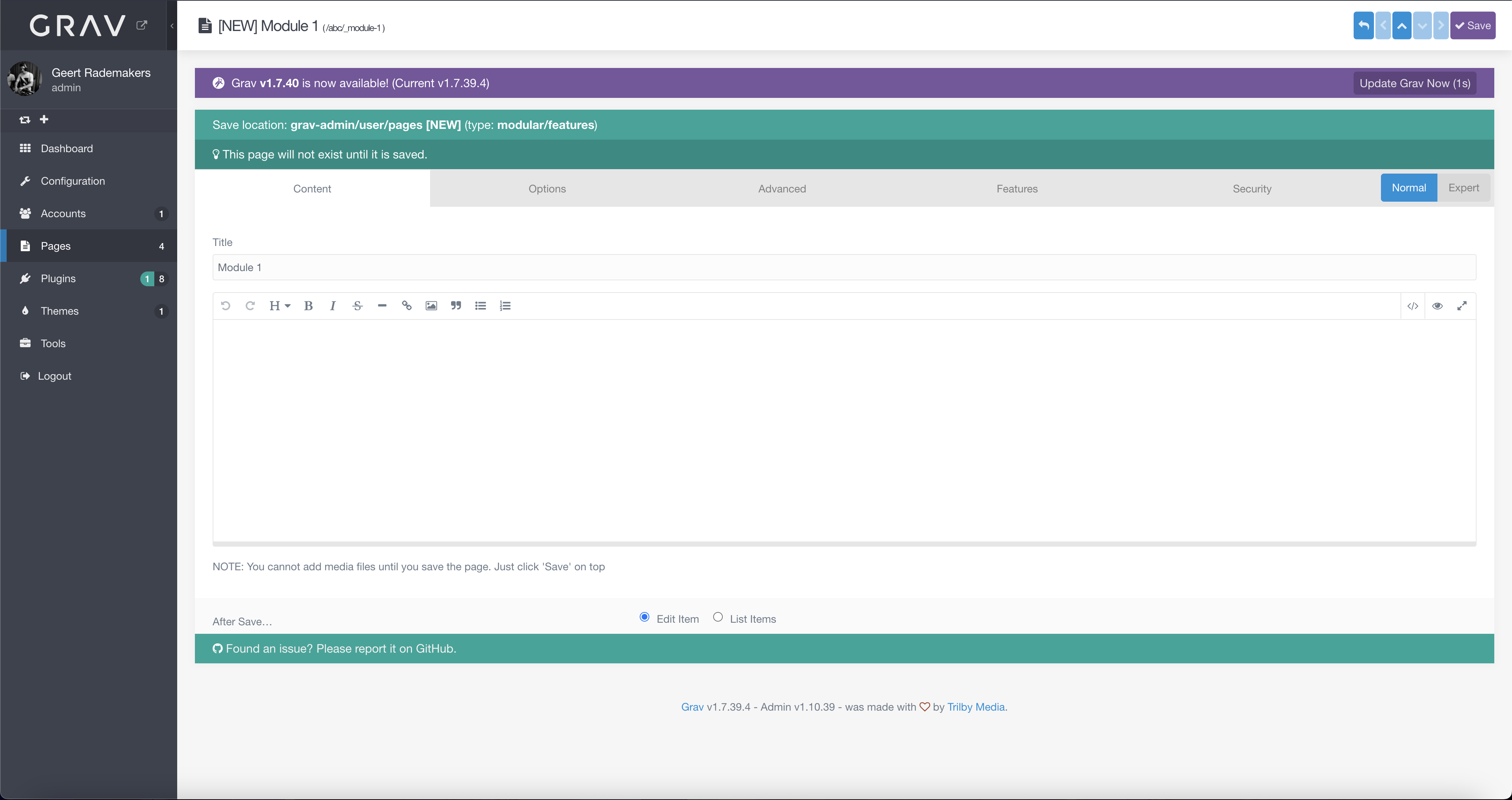 figure 4
After saving the module, you will see the correct editor and the media part. You can now add content to the module and check how the module looks like by either visiting the url (if the parent page is visible), or by pressing the 'eye' icon next to the 'delete' button (figure 5). This will preview the parent page including all other modules. Modules might have different interfaces as you see in figure 5. This might be dependent on what type of module you have selected. A documentation about filling in a customized module, will be described in the list of modules you have received together with this documentation.
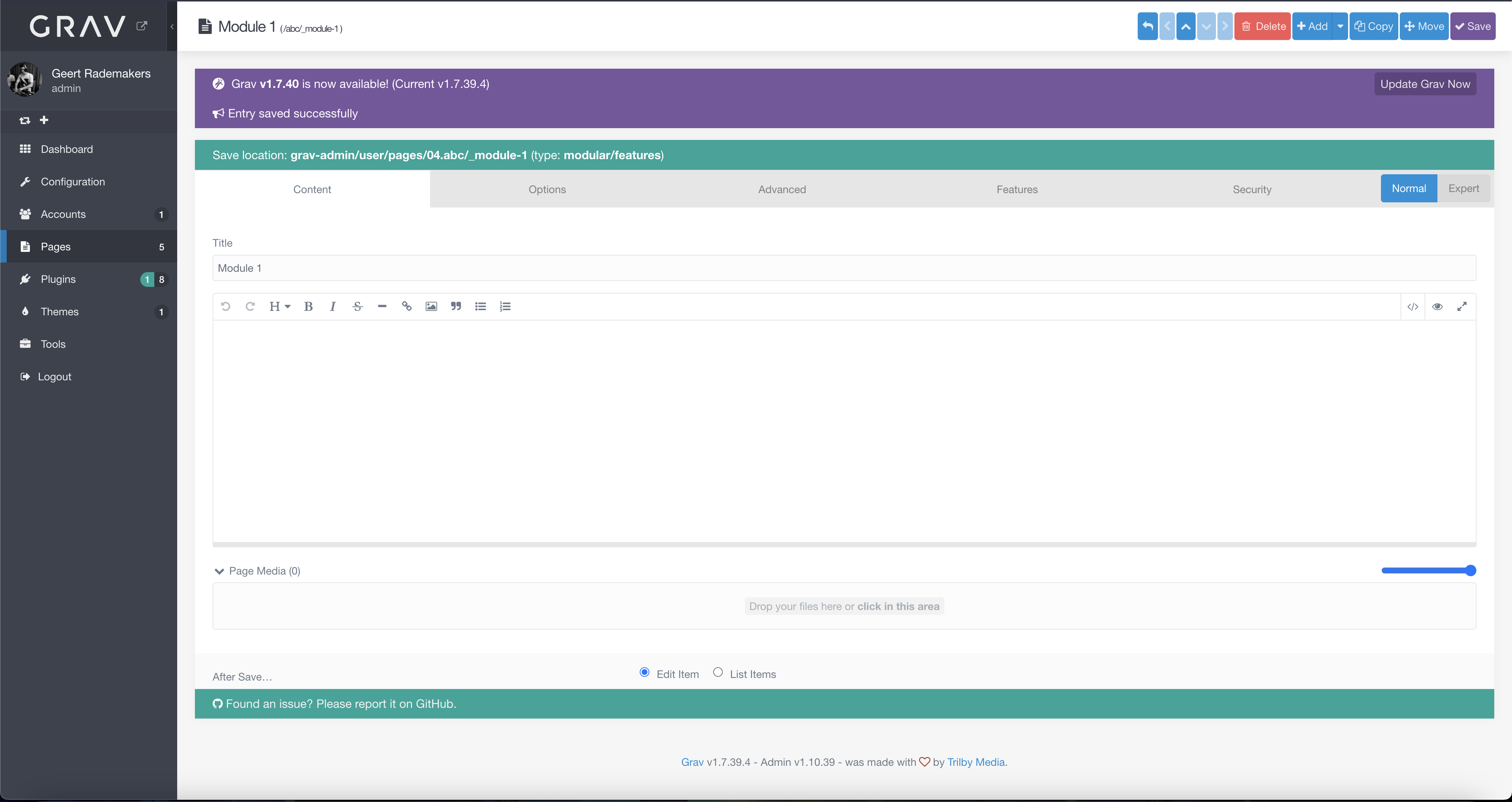 Figure 5
After saving the module, you will be able to see this page as an increment of the parent page in the 'Pages' tab, in the side menu. You will see a '(1)' or more, depending on how many modules your parent page already contains (figure 6). Click on a modular parent page to display the underlying modules. These will be displayed in the second column, indicated by a lego brick like icon. To edit a module, click on it and follow the guide to edit a module.
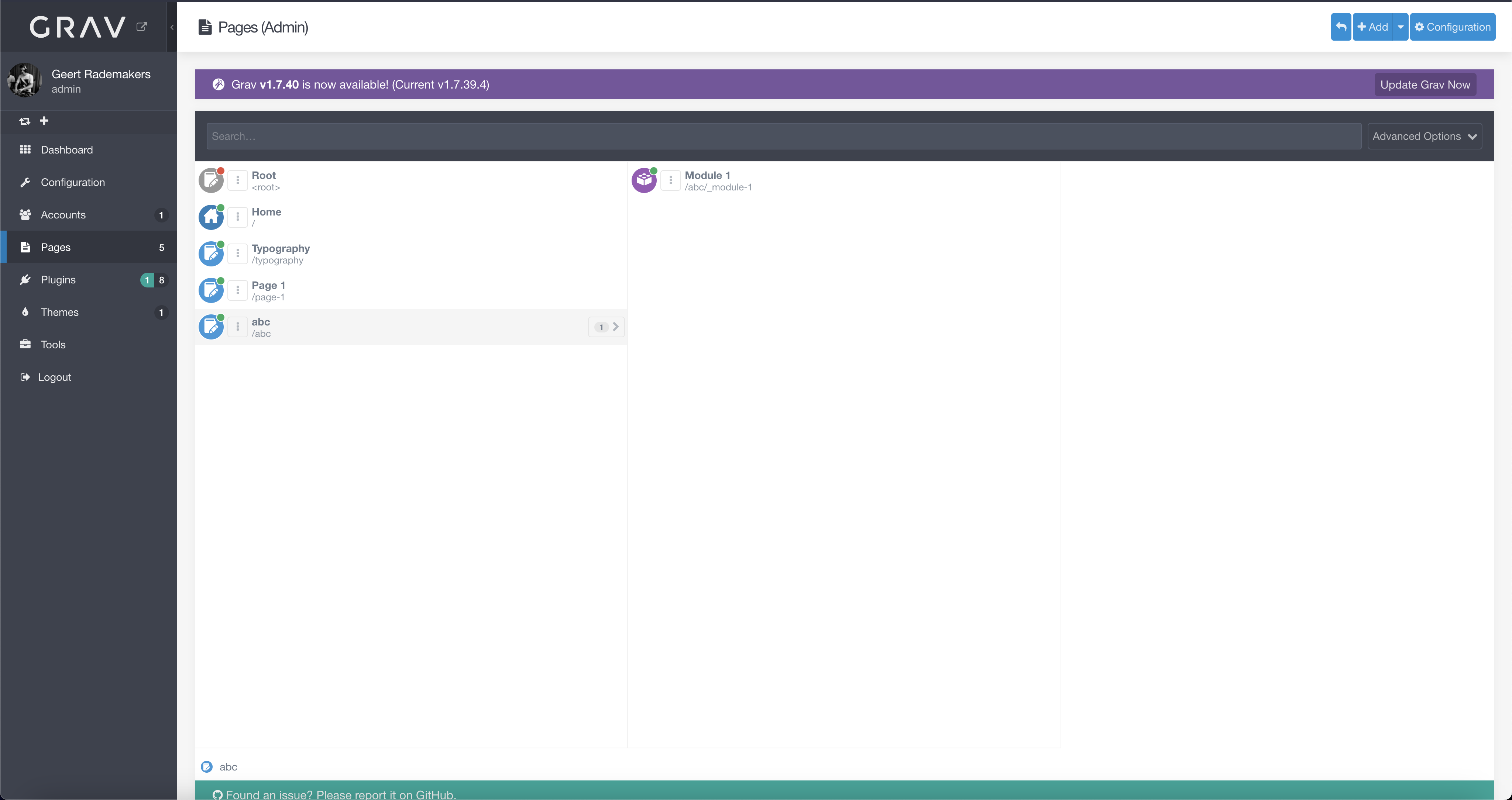 Figure 6
Manage an existing modulair page
To manage an existing page, go to the 'Pages' tab in the left-hand menu. Locate the parent page in which the module is located to