
Manage an existing page
To manage an existing page, go to the 'Pages' tab in the left-hand menu. After that, select the page you want to edit, from the selection shown below (figure 1). If the page you want to edit is in a folder or submenu, be sure to open that folder first and then select the desired page.
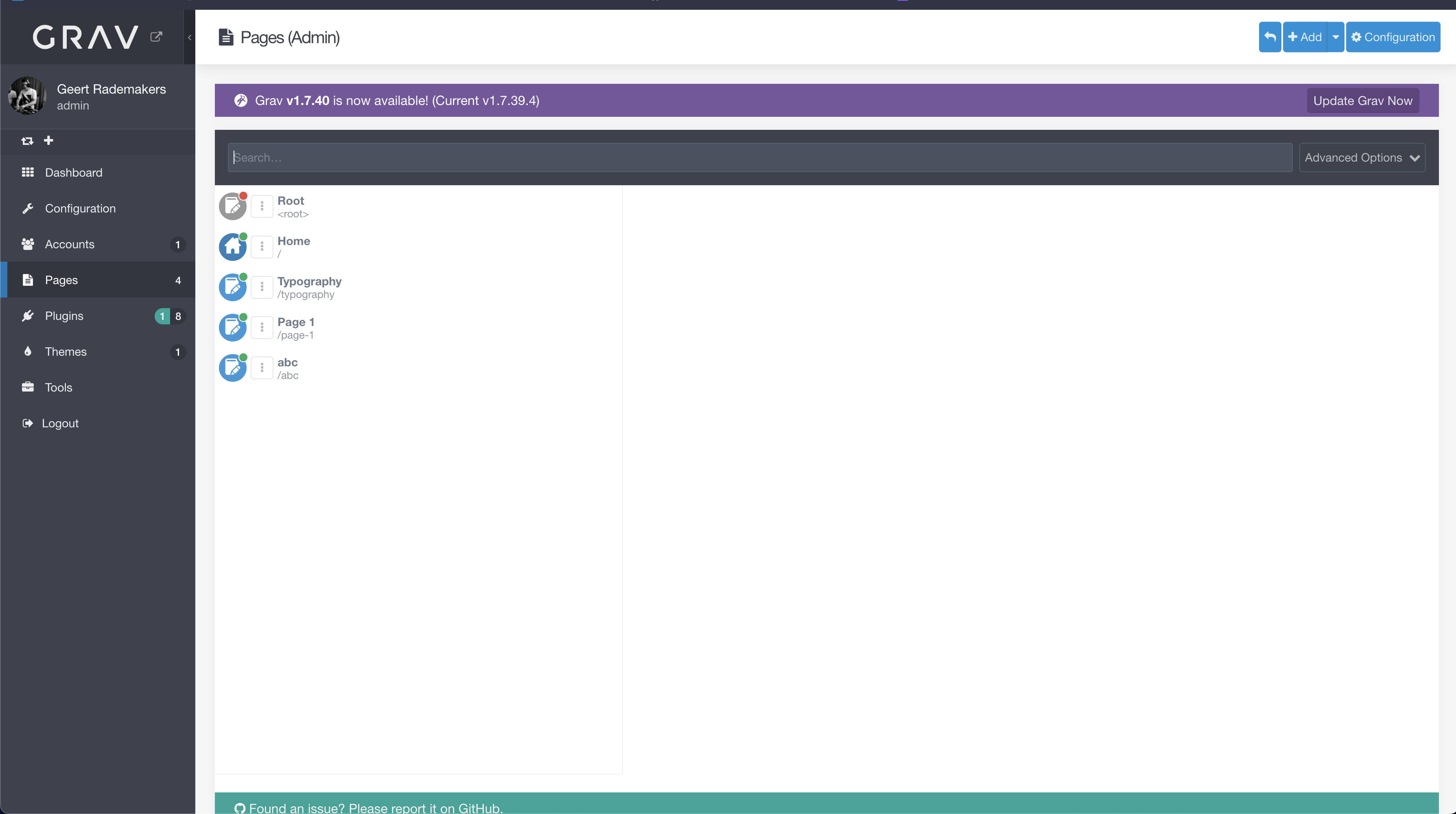 figure 1
After selecting the page, you are able to edit the content you want. You can:
- Add extra media
- Change the order of media
- Change text on the webpage
- Change the title of the webpage
- And much more!
After a change, be sure to click 'Save' (figure 2) on the top right corner to make sure the changes have been saved. The changes you made, are immedietly reflected on the webpage. You can preview the page by either clicking the 'eye' icon next to the 'Delete' button, or navigate to the page itsself it is already visible. Be sure to save your page before you do this!
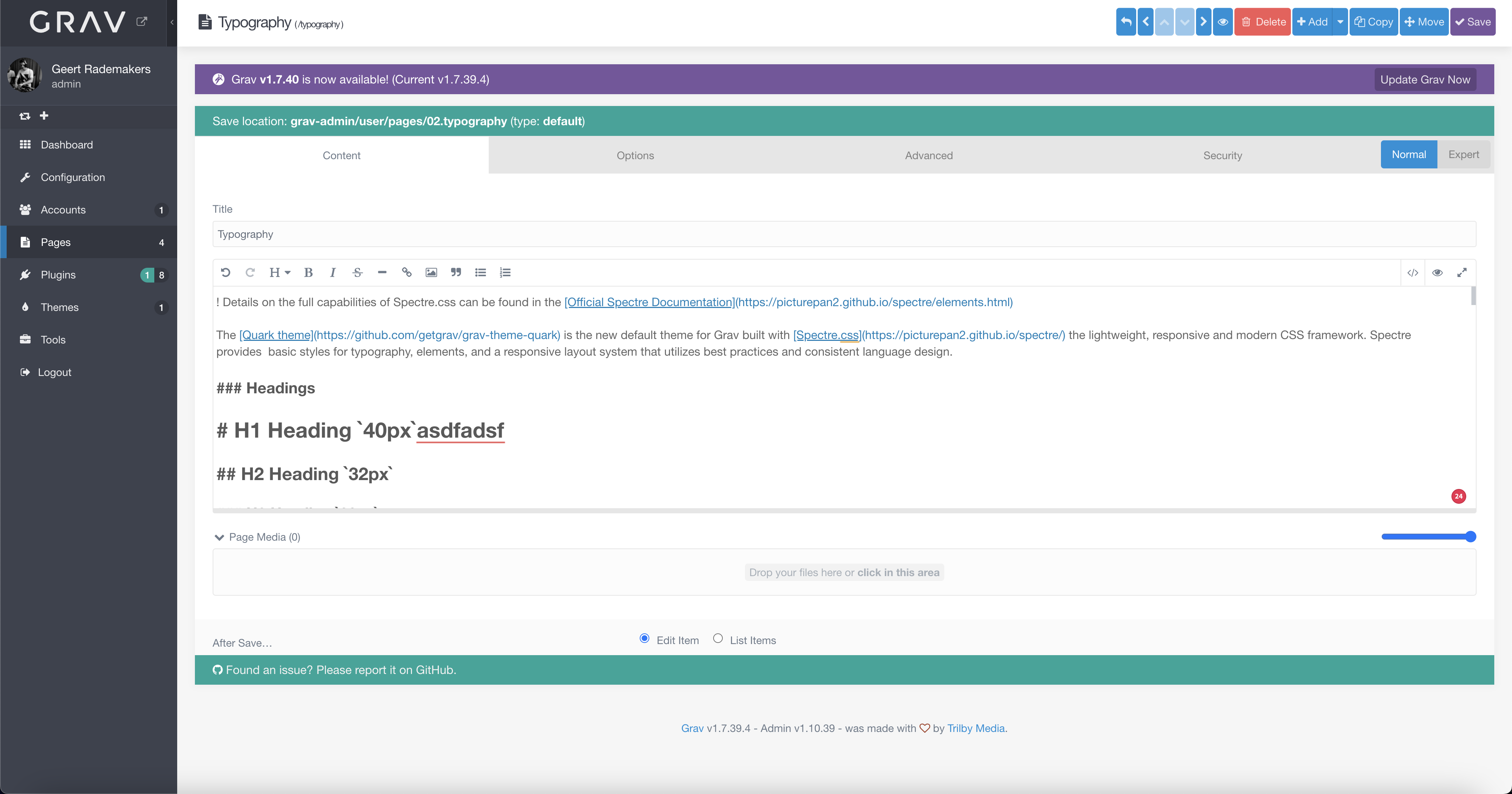 figure 2
To change the order of the page, click on the 'advanced' tab (figure 2). Here you will find the following page (figure 3). You can change the order by enabling 'Folder Numeric Prefix' and saving the page. This will add a number to the folder, after which you can change it in order. Be sure the other pages in this folder also have 'Folder Numeric Prefix' enabled, else you won't be able to change the order.
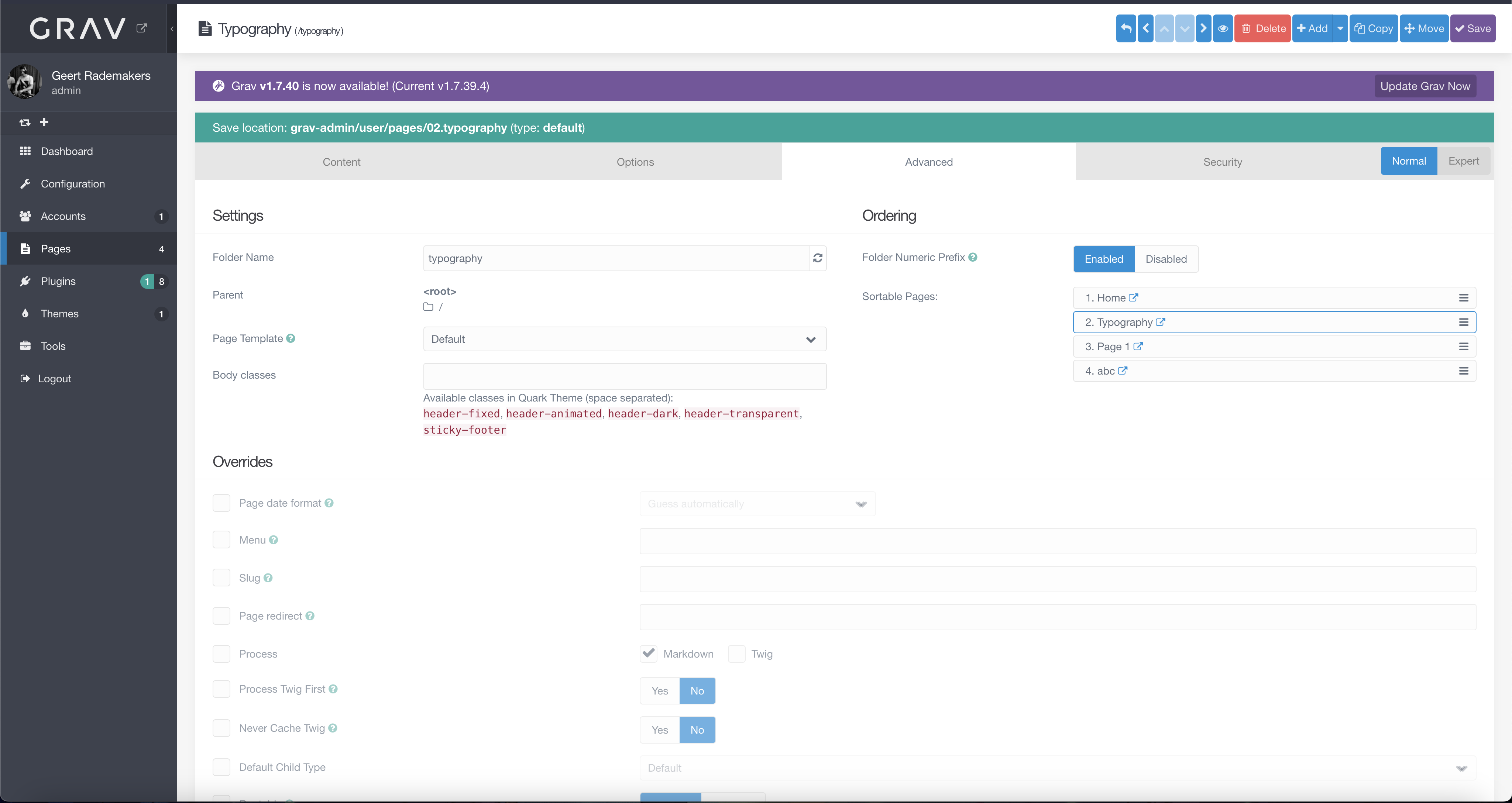 figure 2